License Token Setup Guide
Overview
This document outlines the steps required to obtain and apply a valid license token for your deployment. Please ensure that you have administrative access to the system before proceeding.
Step 1: Access the Admin Portal
Open your web browser and navigate to the Admin Portal: http://localhost:8080
Note: Replace localhost:8080 with the actual host and port of your deployed environment.
Step 2: Retrieve the Deployment ID
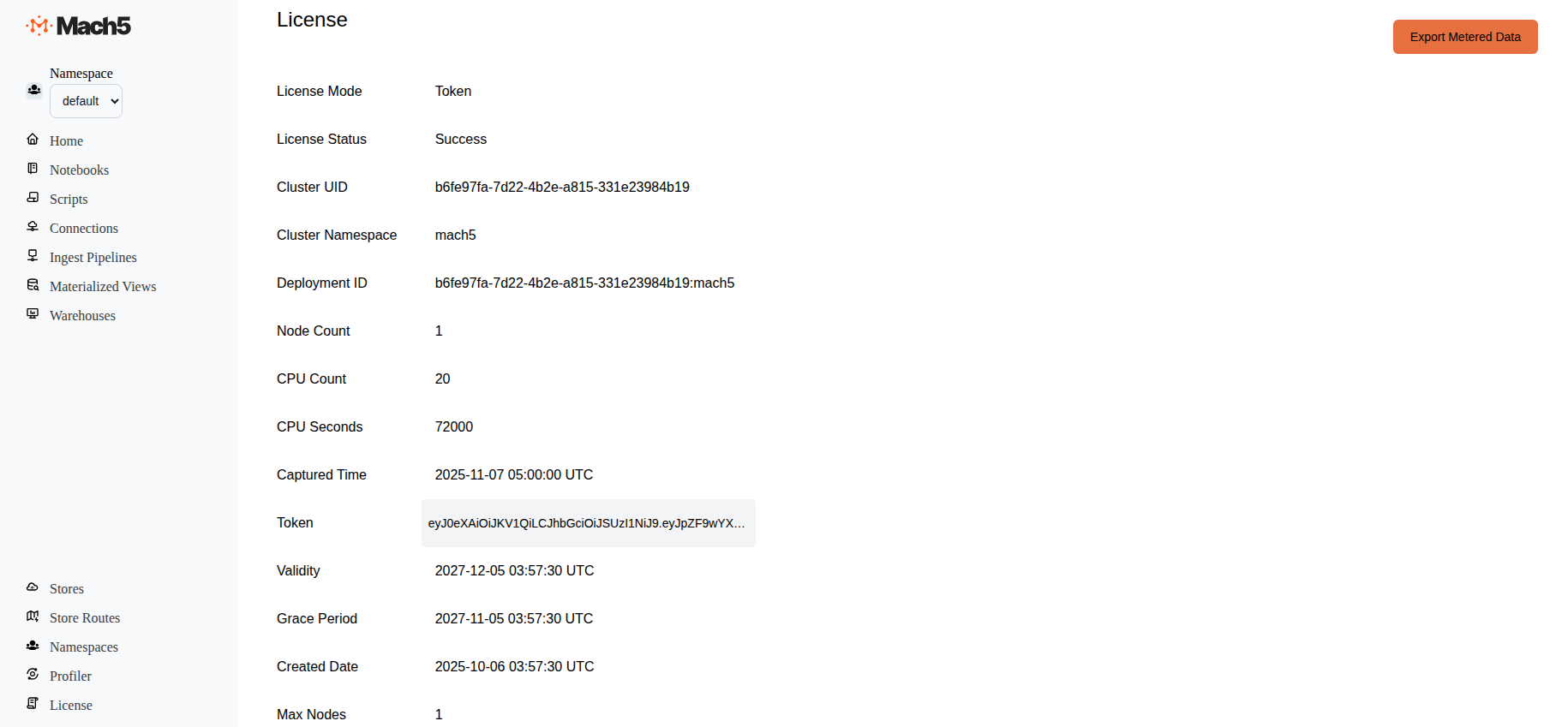
-
In the left-hand navigation menu, scroll to the bottom and click on the License link.
-
On the License Details page (displayed on the right), locate and copy the Deployment ID.
Step 3: Request a License Token
Contact the Mach5 Search team with the retrieved Deployment ID to request a license token.
Once your request is processed, you will receive a token string to activate your license.
Step 4: Update the values.yaml File
After receiving the license token:
-
Open the
values.yamlconfiguration file in your preferred editor. -
Replace the
<Add Token Here>placeholder with the actual token value provided to you.
Example
license:
  metered: false
  token: "<Add Token Here>"
- Save the file and do an helm upgrade for your deployment to use the new token.
Notes
-
Ensure that the token is correctly formatted and does not include extra spaces or line breaks.
-
If you encounter issues during this process, please reach out to Mach5 Search with your Deployment ID and any error messages received.